 LaunchMon
LAUNCHD FIELD NOTES
Find launch agents pointing to deleted apps
Inspect Program and ProgramArguments for stale executable paths before removing an old launch agent.
Start in Terminal
These examples use a placeholder label. Substitute the exact Label from your own plist, not its filename.
plutil -p "$HOME/Library/LaunchAgents/local.example.plist"
launchctl print "gui/$(id -u)/local.example"
What to check next
Check the referenced absolute executable path in Finder or with test -x. If it belongs to an app you removed, prefer the vendor’s uninstaller. Before manually archiving the plist, unload the exact third-party service and keep a backup. Do not remove Apple services or unfamiliar system jobs.
Why it happens
Dragging an application to the Trash may leave separately installed agents or daemons behind. An absolute missing path is useful evidence; a relative command may resolve through launchd’s PATH and needs further checking.
User agents usually run in gui/<your uid>; system daemons run in system. The same label in different domains refers to different service registrations.
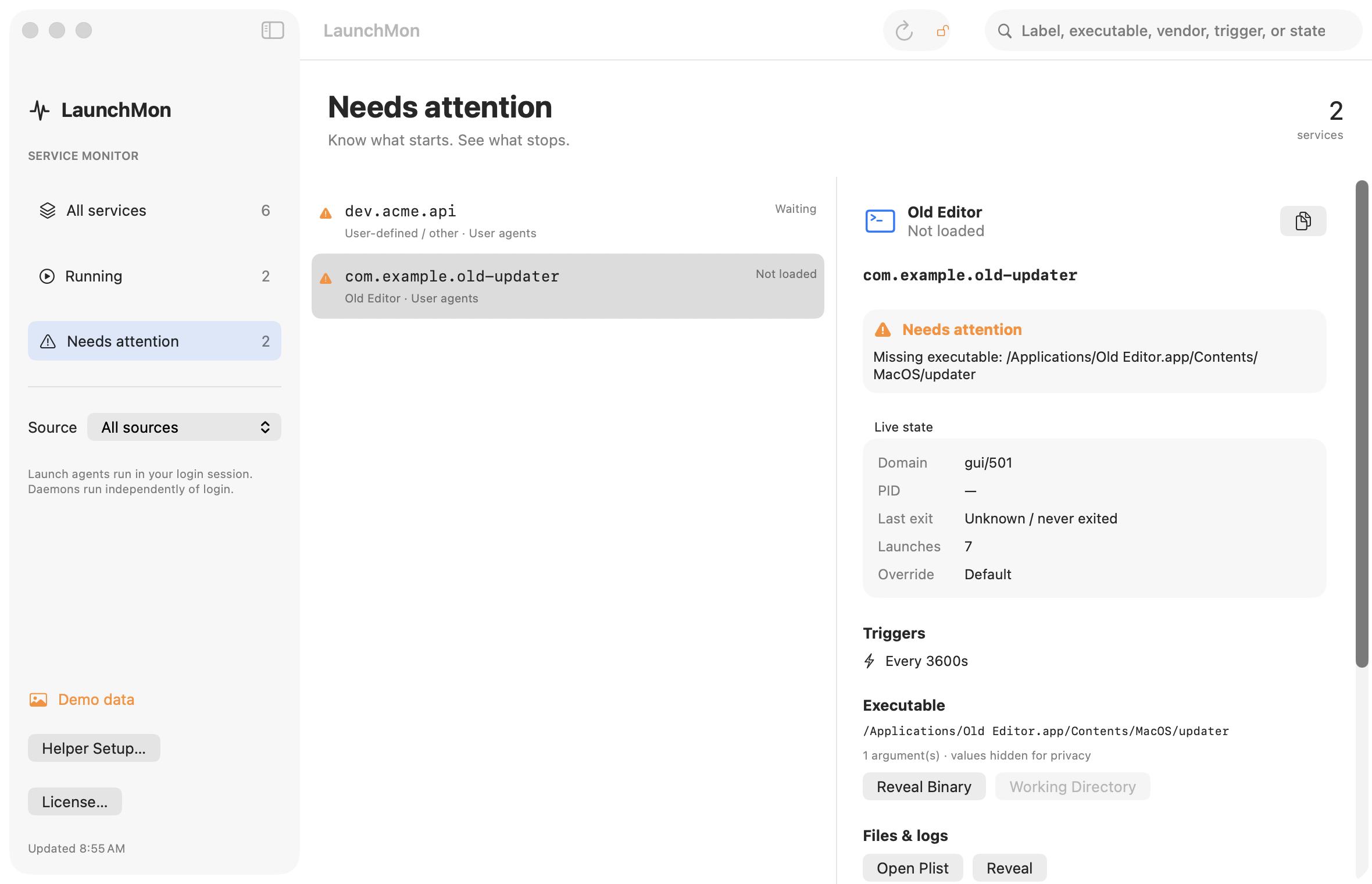
See it in LaunchMon
LaunchMon brings the plist, triggers, runtime state, and configured log paths together.
Related guides
- Why isn’t StartCalendarInterval running my script?
- Homebrew says “started,” but the service is not running
References: Apple: creating launchd jobs. For commands on your macOS version, run man launchctl and man launchd.plist.